ads.txt
ads.txt and app-ads.txt are text files hosted on a website that allow advertisers and buyers to verify who is authorized to buy and sell ad inventory.
These files contain a list of Authorized Digital Sellers (ADS) who are permitted to resell a website’s or app’s inventory.
They are part of an Interactive Advertising Bureau (IAB) standard to prevent unauthorized reselling and reduce ad fraud.
Publift now provides a hosted ads.txt file, ensuring your authorized sellers remain accurate and automatically updated.
Website ads.txt
Advertisers regularly crawl your domain’s /ads.txt file to confirm whether they are authorized to buy your inventory.
If a buyer or SSP cannot find its entry, it may choose not to bid.
Most buyers re-crawl the ads.txt file at least once every 24 hours.
Setup ads.txt
During onboarding, Publift will provide you with a hosted ads.txt URL, for example:
https://cdn.fuseplatform.net/ads-txt/publift/[YOUR_ACCOUNT]/ads.txt
Your task is to ensure:
https://yourwebsite.com/ads.txt
either redirects to the hosted file or serves the exact content of the hosted file.
You can view all of your account’s ads.txt links at:
👉 https://dashboard.publift.com/v3/adstxt
There are three installation methods:
1. Redirect to the Hosted File (Recommended)
A redirect ensures your ads.txt always stays up-to-date automatically without requiring manual edits.
Choose the method that matches your hosting environment.
Apache (.htaccess)
Add the following rule to your .htaccess file:
Redirect 301 /ads.txt https://cdn.fuseplatform.net/ads-txt/publift/[YOUR_ACCOUNT]/ads.txt
Nginx
Add rule inside your server block:
server {
    location = /ads.txt {
        return 301 https://cdn.fuseplatform.net/ads-txt/publift/[YOUR_ACCOUNT]/ads.txt;
    }
}
Cloudflare (Redirect Rule)
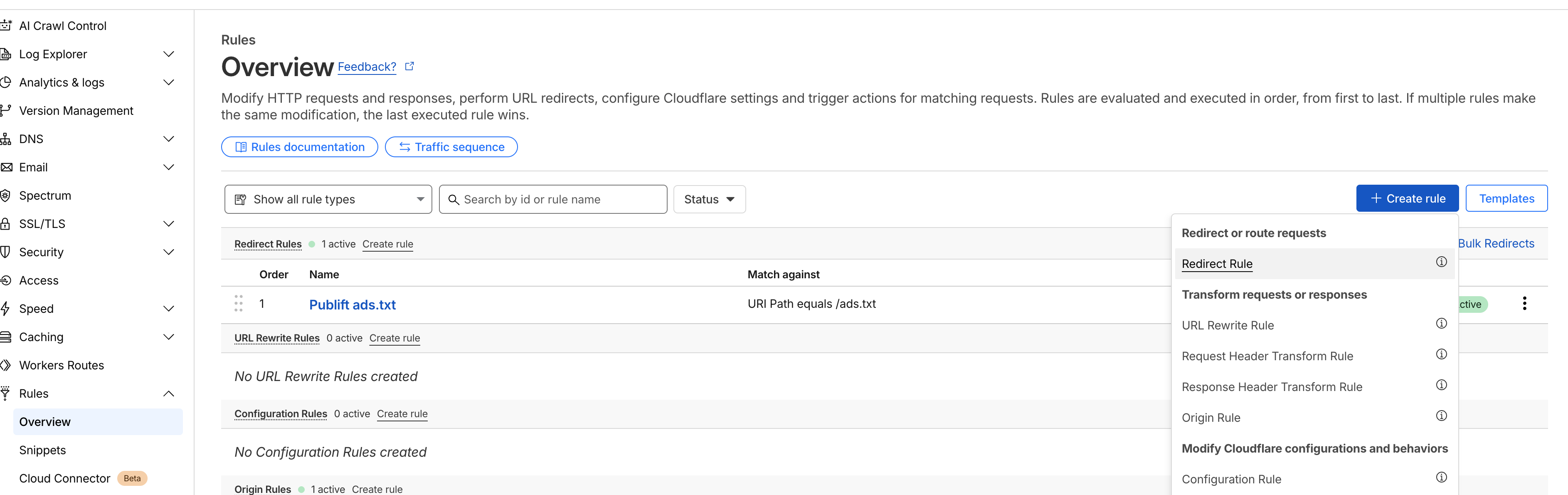
- Go to Rules → Overview
- Click + Create Rule → Redirect Rule
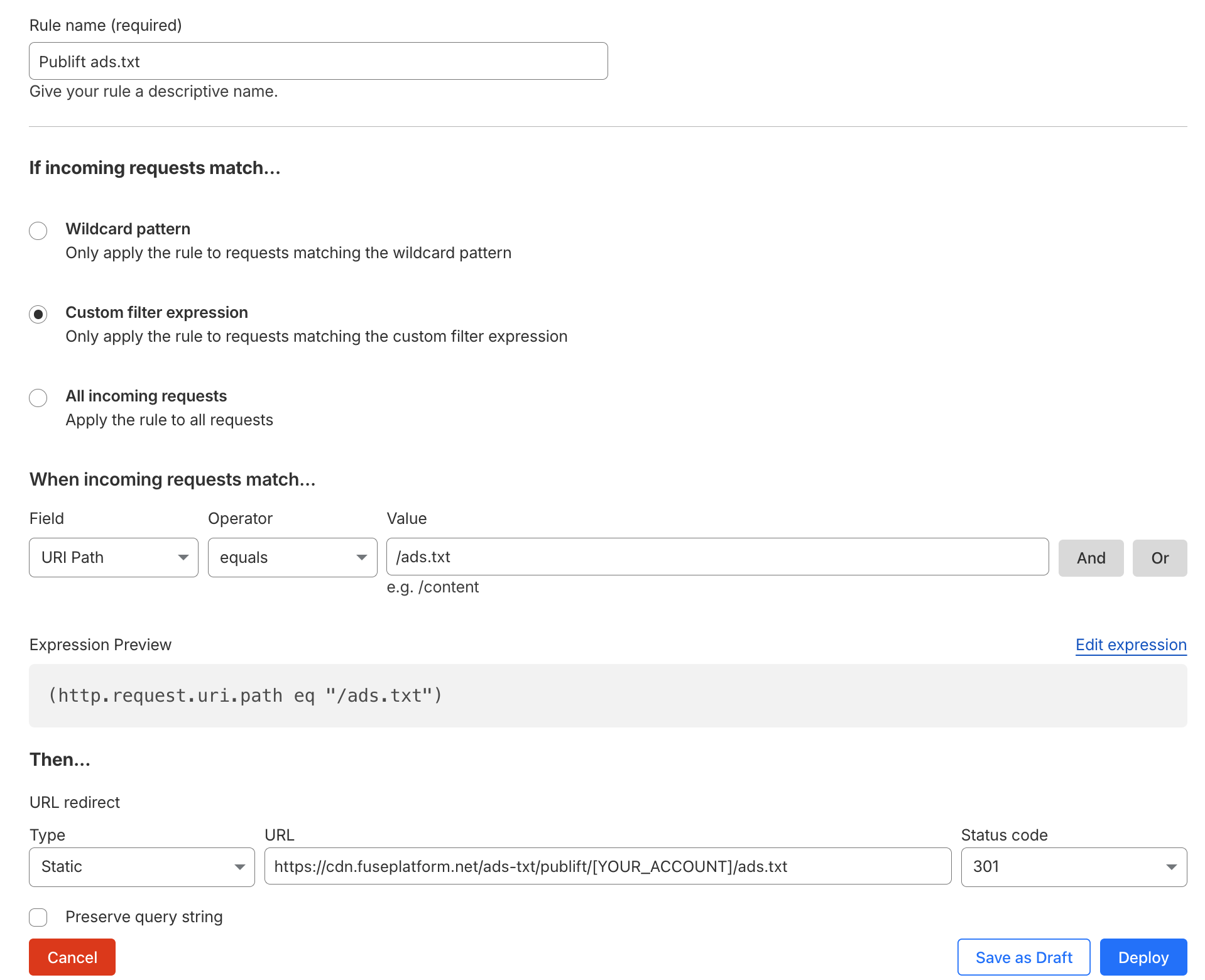
- Name the rule: Publift ads.txt
- Under When incoming requests match…
- Choose Custom filter expression
- Field: URI Path
- Operator: equals
- Value:
/ads.txt
- Under Then…
- Action: URL Redirect
- Type: Static
- URL:
https://cdn.fuseplatform.net/ads-txt/publift/[YOUR_ACCOUNT]/ads.txt
- Save and deploy
Go to Cloudflare → Rules → Overview to create a new redirect rule.
Configure the rule to forward /ads.txt to the Publift hosted file.
2. Manual Upload (If Redirects Are Not Possible)
If your hosting environment does not support redirects, you can upload the file manually.
Download your ads.txt file from:
https://cdn.fuseplatform.net/ads-txt/publift/[YOUR_ACCOUNT]/ads.txt
Then upload it to:
https://yourwebsite.com/ads.txt
Make sure the file is served as plain text.
3. Automated Pull
If you prefer server-side automation, you can schedule a daily pull from the hosted file:
curl -o /[YOUR_ADSTXT_PATH]/ads.txt https://cdn.fuseplatform.net/ads-txt/publift/[YOUR_ACCOUNT]/ads.txt
This ensures updates are synced automatically.
Verifying Your Setup
After installation, visit:
https://yourwebsite.com/ads.txt
You should see the content from your Publift-hosted ads.txt file.
Troubleshooting
- It may take up to 24–48 hours for buyers to re-crawl your file
- Ensure your
https://yourwebsite.com/ads.txtsite is publicly accessible - Do not block crawlers with firewalls, authentication, or bot protection
- The file must be served as plain text
If you continue to experience issues, Google provides a helpful guide:
https://support.google.com/admanager/answer/7673979
Updating
Publift monitors your ads.txt daily and will notify you if updates are required
(e.g., new partners, syntax issues).
- If you use the redirect method, updates happen automatically.
- If you use manual upload or automated pull, ensure your version stays synced with Publift’s hosted file.